


Affiliate Disclosure: This article contains affiliate links. If you purchase through one of them, I may earn a small commission at no additional cost to you.
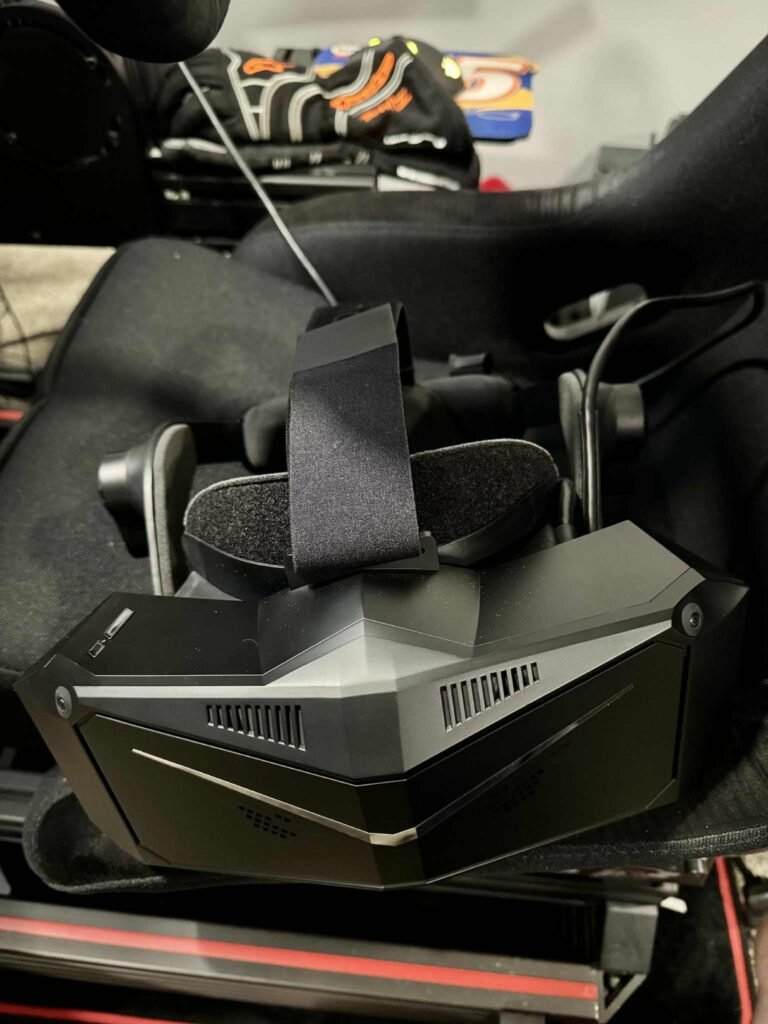
👉 Check out the Pimax Crystal Light VR Headset here
Why a Setup Guide Matters
After publishing my first impressions of the Pimax Crystal Light VR Headset, I quickly realized most readers wanted one thing above all: a clear, real-world guide to getting the headset running perfectly with iRacing.
While the Crystal Light offers incredible clarity and immersion, your experience can vary depending on setup, calibration, and GPU configuration. After a full week of testing and tweaking, here’s the exact process and tips I used to make everything run smoothly on my RTX 3090 rig.


Step 1 – Connect and Prepare Your GPU
If you’re coming from a triple-screen setup, this is important: unplug your triple displays from the DisplayPorts and connect just one monitor using your GPU’s HDMI port.
When I first installed the headset, my PC wouldn’t recognize it because all DisplayPorts were occupied. Once I made this change, the Pimax Crystal Light connected instantly, and firmware updates proceeded without a hitch.
💡 Pro Tip:
- Use DisplayPort 1.4 for the headset (preferred connection).
- Avoid daisy-chaining or adapters that might interfere with bandwidth.
Step 2 – Install & Update Pimax Play
Download the latest version of Pimax Play software. This is your control center for firmware, headset calibration, and system settings.
After launching Pimax Play:
- Update the firmware when prompted.
- Reboot the headset once updates complete.
- Follow the Room Setup wizard to establish your play space and tracking origin.
Once complete, you’ll be greeted with the signature Crystal Light environment—a clear, high-resolution space that already hints at what’s ahead.


Step 3 – Calibrate IPD and Clarity
The interpupillary distance (IPD) setting determines how sharp and comfortable the visuals appear. Spend a few extra minutes here—small changes make a big difference.
In iRacing, I noticed that fine-tuning the IPD eliminated nearly all blur and glare from cockpit menus. The sweet spot for me fell between 63–64 mm, but that can vary by user.
🛠️ Quick Settings Checklist:
- Adjust IPD until both eyes feel balanced in focus.
- Center the headset horizontally — a small tilt can reduce edge distortion.
- Tighten the strap evenly for a snug but comfortable fit.
Step 4 – Optimize iRacing Graphics for VR
Once everything’s running, it’s time to dial in performance.
On my RTX 3090, these settings worked great for 90 FPS stability:
| Setting | Recommended Value | Notes |
|---|---|---|
| Resolution Scaling | 100–120 % | Higher sharpens cockpit details. |
| AA (antialiasing) | 4× MSAA | Keeps edges crisp without heavy GPU load. |
| Reflections | Medium | Good balance for track realism. |
| Motion Blur | Off | Prevents visual nausea. |
| Shadows | Medium / Low | Boosts performance in dense grids. |
Remember, every rig is different — tweak these settings around your GPU and CPU balance.
Step 5 – Track Test and Adjust Headset Fit
Your first test should be in a car and track combination you know well. I started with the NASCAR Next Gen Cup Car at New Hampshire again to compare consistency with my first session.
After a few laps, I noticed small light leaks around the nose. Tightening the top strap and slightly raising the back cushion fixed it.
The Crystal Light’s comfort padding lets you wear it comfortably for longer races — a big upgrade from bulkier headsets I’ve used in the past.


Bonus – Pimax 2025 PCVR Upgrade Event & Discount
Right now, Pimax is running their year-long PCVR Upgrade Event. This campaign lets sim racers upgrade to the Crystal Light with special discounts and early-access offers.
Use my code sksimracing during checkout to save on your Pimax purchase and join thousands of racers already making the switch.
👉 Upgrade to Crystal Light Here
Final Thoughts — Setup Done Right
Once configured correctly, the Pimax Crystal Light delivers a clean, immersive experience that transforms iRacing. The setup takes a few extra steps, but it’s well worth the effort once you’re in the cockpit.
Whether you’re upgrading from triples or entering VR for the first time, this headset makes it feel like you’re truly in the car, not behind it.
Ready to upgrade your sim racing experience?
👉 Grab the Pimax Crystal Light now and use discount code sksimracing during the PCVR Upgrade Event 2025 for exclusive savings.